Why make a copy
zzzTab has no account and no servers, so your list is saved only in this browser. If you uninstall zzzTab or clear the browser’s data, the list is lost, and so is the automatic copy.
It also doesn’t sync between computers. A file is how you take your list with you.
Export your list
- Click the zzzTab icon and open Settings.
- Go to “Import & export”.
- Choose what to download: CSV, JSON, or just the links.
- Keep the file wherever you like.
- Download CSV: opens in Excel or Google Sheets.
- Download JSON: a full copy, with your quick buttons and settings.
- Copy links: just the web addresses, one per line.
Restore it or move it to another computer
- On the other computer (or after reinstalling), open Settings and go to “Import & export”.
- Drop your file.
- Look at the preview: how many tabs will be imported and which ones you already have.
- Click Import.
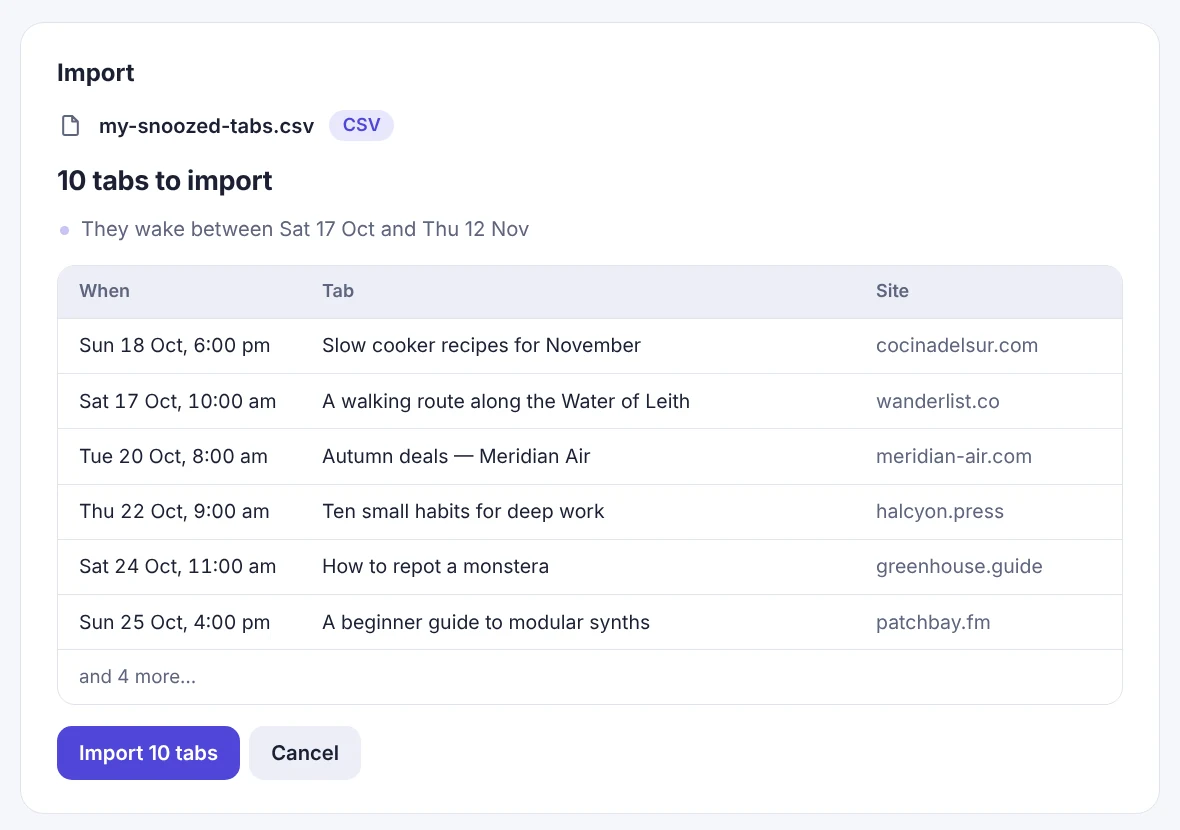
The file is read inside your browser: it is not uploaded anywhere. Repeats are not duplicated, and tabs already past due open one by one.
The automatic copy before every update
Before every update, zzzTab keeps a copy of your list in the browser. If a sleeping tab is missing after an update, a “Get it back” notice appears.
Questions
Does it sync between my computers?
No: everything stays in your browser, so nothing leaves it. To move your list to another computer, export it and import it there.
I want to delete everything
Remove the tabs from the list, or uninstall zzzTab: everything it stored is deleted, including the backup copy.
Which format should I choose?
JSON is a full copy with your settings. CSV is easiest to open in a spreadsheet. Both can be imported back.
Try it in a minute
Free Chrome extension. No account, and everything stays in your browser.